How to use organization management/general
This interface allows you to manage and customize various aspects of your organization's presence and settings for the platform.
To access the organization management interface, follow these steps:
- Navigate to 'Organization Management' in the left-hand toolbar:
- Locate and click on 'Organization Management' listed in the toolbar.
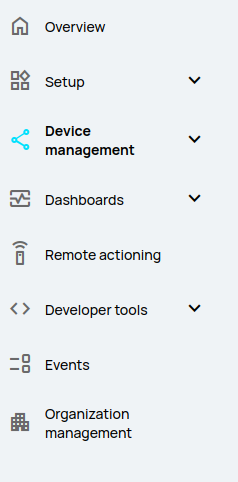
This will open the interface dedicated to managing organizational settings.
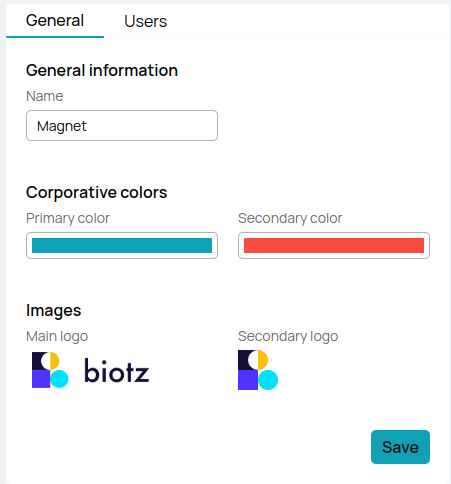
Organization Management Interface
In the Organization Management interface, you can perform the following actions:
Change Organization Name
- Update the name of your organization as needed.
Choose Primary and Secondary Colors
- Select primary and secondary colors for the platform's theme from a picker of 12 different colors by clicking on the color bar.
Upload Primary and Secondary Logos
- Upload primary and secondary logos for branding purposes. To upload a new logo, click on the current logo displayed. A dialog box will open allowing you to select the new logo file from your computer.
After making all necessary updates, remember to save your changes by clicking the 'Save' button.